
Tab Overload? How to Finally Tame Your Browser Tab Chaos

Tab Overload: How Many Tabs Do You Have Open Right Now?
Research from Carnegie Mellon University found that 25% of participants reported their browsers or computers had crashed because of too many tabs open. If you haven’t crashed yet, you’ve probably experienced the anxiety of seeing those tiny, illegible tab labels squeezed across your screen, wondering which one contains that thing you needed. This tab overload isn’t just annoying—it’s actively harming your productivity.
People feel both compelled to keep tabs open and distressed by having them open. The median “stress trigger point” was only eight tabs.
Here’s what nobody tells you about browser tabs: they weren’t designed for how we actually work. Tabs appeared in 2001 when the internet had much less information than today. One tab held one webpage. Simple.
Now, one tab might be your entire email system. Another runs your music. Several hold articles you’re researching. Others are tools you reference constantly. Add work tasks, personal browsing, and things you “might need later,” and you’ve got digital chaos masquerading as multitasking.
The solution isn’t another browser extension promising to organise your tabs. You don’t need better tab management—you need a completely different mental model for how tabs work.
Why You Can’t Just “Use Fewer Tabs”
Every article about tab management tells you to “close unnecessary tabs.” But chances are, if you’ve opened them in the first place, they’re not unnecessary to you. Each tab represents something real: a task to complete, information you need, a reminder, a fear that you’ll lose something important. Your brain assigned meaning to those tabs. Telling you to close them ignores why they’re open in the first place.
The Carnegie Mellon research identified three core reasons tabs accumulate:
- Loss aversion: “If I close this, I’ll never find it again.” Once it’s out of sight, it’s effectively gone. This fear is so powerful that people keep tabs open despite feeling overwhelmed.
- Reminder system failure: Tabs become visual to-do lists. That open email tab reminds you to respond. The article tab means “read this later.” The shopping site means “buy this when you have time.” You’re using tabs as external memory because your actual reminder system isn’t working.
- Context switching cost: Opening and closing tabs requires decisions. When you’re already mentally drained, keeping everything open feels easier than constantly deciding what to keep and what to close. This decision fatigue contributes to tab overload.
Understanding these psychological drivers changes how you approach the problem. You’re not disorganised—you’re trying to solve real problems with the wrong tool.

The Three-Bucket Classification System
Instead of managing individual tabs, classify them into three categories based on their actual function. Every tab in your browser falls into one of three buckets: Active, Reference, or Archive.
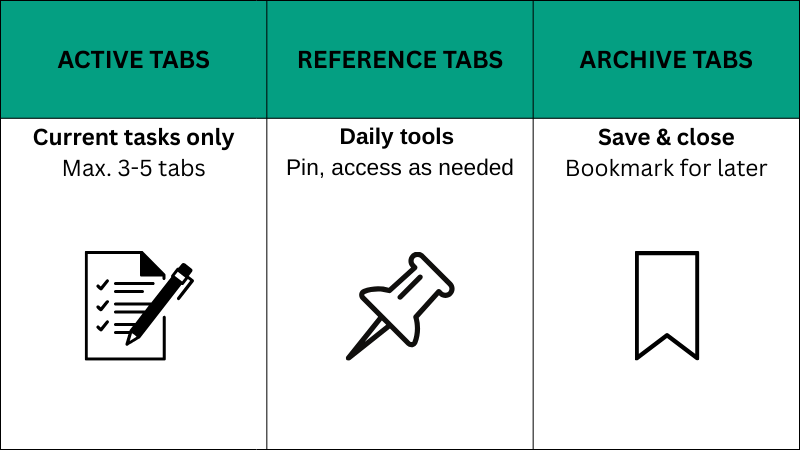
Active: What You’re Working On Right Now (Not Tab Overload)
Active tabs support your current task. If you’re writing a report, Active tabs include the document, relevant research, and necessary data sources. Nothing else.
Rule: Maximum 3-5 Active tabs at once. When you start a new task, the old Active tabs move to Reference or Archive. This keeps your current work visible and your attention focused.
Most people fail here because they don’t close tabs when they finish tasks. The document you drafted three hours ago? No longer Active. Move it.
This principle mirrors how clearing mental clutter reduces cognitive load—you keep only what serves your immediate purpose visible.
Reference: Tools and Resources You Need Frequently
Reference tabs contain systems you check multiple times daily but don’t actively work within continuously. Email inbox, calendar, project management tool, communication apps, frequently accessed documents.
Rule: Pin these tabs. Every browser lets you pin tabs, which shrinks them to just their favicon (that small, colourful “G” logo in Google or the small smile arrow of Amazon in the top left of your search bar) and keeps them at the start of your tab bar. Pinned tabs persist across sessions and take minimal visual space.
Limit pinned tabs to genuine daily-use tools. Your email qualifies. The article you “might” read later doesn’t.
Archive: Everything Else Causing Tab Overload
Archive includes articles to read, research for future projects, interesting links, shopping tabs, and anything you’re keeping “just in case.” These “Archive” tabs are the primary source of tab overload.
Rule: These tabs should never be open. Save them properly.
How to Archive:
Reading material: Use a read-later service like Instapaper, or save to your notes app. These systems are designed for this purpose—tabs aren’t.
Research: Bookmark into project-specific folders or save URLs to your project notes. If it’s research for a project, it belongs with that project’s documentation, not floating in your browser.
Important pages: Bookmark with descriptive names. “Homepage” tells you nothing in six months. “Client quarterly review template—2024” is searchable.
Reminders: Convert to actual tasks in your task planning system. That open email tab reminding you to respond? Add “respond to Sarah re: budget” to your to-do list, then close the tab.
QUICK WIN:
Before opening a new tab, ask: “Is this Active (current task), Reference (daily tool), or Archive (save for later)?” If it’s Archive, bookmark it immediately instead of opening it. This one decision stops a large percentage of ‘tab accumulation’ in its tracks.
The Monday Morning Reset
Classification only works if you maintain it. Most people organize once, then gradually return to chaos.
The Monday Morning Reset prevents this drift.
Every Monday morning, before checking email or starting work, spend 10 minutes classifying your tabs:
Close all Active tabs from last week’s projects. Friday’s work is done. Keeping those tabs open creates false urgency—your brain sees open tabs as unfinished business.
Review pinned Reference tabs. Still using each one daily? Keep it. Using it twice a week? Unpin it and bookmark instead. Your Reference bucket should contain only genuine daily tools.
Archive everything else. Every remaining unpinned tab gets properly saved then closed. No exceptions. Articles go to read-later apps, links get bookmarked, reminders become tasks.
Start each week with a clean browser: 3-5 Active tabs maximum, only essential Reference tabs pinned, zero Archive tabs open.
This weekly rhythm prevents accumulation. You’re not fighting to maintain control daily—you’re resetting once a week and maintaining lightly between resets. Similar to how habit stacking builds consistency through weekly anchors, the Monday Reset creates a sustainable maintenance pattern.
QUICK WIN:
Open your calendar right now and block 10 minutes next Monday morning. Label it “Browser Reset.” You don’t need to tidy a single tab today — just make the commitment before you close this article. When Monday arrives, follow the three steps: close last week’s Active tabs, review your pinned Reference tabs, archive everything else. One weekly reset prevents the chaos from ever building back up.
Handling the Exceptions
Real work doesn’t fit neatly into systems. Here’s how to handle common complications:
Real work doesn’t fit neatly into systems. Here’s how to handle common complications:
Multiple projects running simultaneously: Use separate browser windows, not tabs. One window per major project. This creates clear context boundaries. When you switch projects, you switch windows—all relevant tabs are together.
Chrome and Edge let you create separate “profiles” with completely independent tab sets, extensions, and bookmarks. Use profiles for work versus personal browsing, or for different major work streams.
Research-heavy tasks requiring many sources: Group tabs using browser tab groups (available in Chrome and Edge). Create groups like “Background research,” “Data sources,” “Methodology.” Collapse groups you’re not actively using.
When research is complete, save the entire group as a bookmark folder. You can reopen all tabs at once if needed, but they’re not constantly open.
Tabs you genuinely need open for extended periods: Sometimes legitimate. Long-running processes, monitoring dashboards, reference documents for ongoing projects. These are truly Active tabs for days or weeks.
The test: if closing the tab would require re-authenticating, re-navigating, or losing state, it’s reasonable to keep open. If you can reopen the exact page from a bookmark, it doesn’t need to stay open.
Emergency tab bankruptcy: When tab overload becomes completely overwhelming, use the nuclear option. Select “Bookmark all tabs” (available in every browser), save everything to a folder with today’s date, then close all tabs.
You now have zero tabs open and a safety net. Everything’s saved. You can revisit that folder if needed, but you probably won’t—and that’s fine. The relief of a clean browser outweighs the theoretical loss of those tabs.
The System in Practice
Here’s what this looks like for different work styles:
Writer/content creator: Active tabs contain current document and research sources (3-4 tabs). Pinned Reference includes email, project tracker, and reference style guide (3 pins). Everything else closes or archives after each writing session.
Developer/programmer: Active tabs include code editor, documentation for current problem, and maybe Stack Overflow searches (3-5 tabs). Pinned Reference includes project board, code repository, and monitoring dashboard (3-4 pins). Research from previous projects stays in bookmarks, not tabs.
Manager/coordinator: Active tabs for whatever task currently has attention (2-3 tabs). Pinned Reference includes email, calendar, team chat, and project management (4-5 pins—managers legitimately need more pinned tools). Meeting prep tabs close after meetings end.
Researcher/analyst: Active tabs for current analysis (4-5 tabs). Separate browser window for each major project, collapsed when not in use. Extensive bookmark folders for saved research. Pinned Reference minimal—just communication tools (2-3 pins).
Notice the pattern: Active tabs stay low regardless of role. Reference tabs scale slightly with job requirements but remain under 6-7 pins. The work lives in proper storage systems, not open tabs.
Why This Works When Extensions Don’t Fix Tab Overload
Tab management extensions exist. OneTab, Workona, Session Buddy, dozens more. Some people love them. Most people install them, use them twice, then ignore them whilst tab overload continues.
Extensions fail because they add complexity to an already overwhelming situation. Now you need to manage both tabs AND the extension organizing your tabs. That’s two systems instead of one.
The Three-Bucket system works because it doesn’t require new tools. You use features already built into every browser: pinning, bookmarks, and windows. No learning curve. No subscription. No “one more tool to check.”
More importantly, it addresses the psychological drivers. Loss aversion? Everything gets properly saved before closing. Reminder system failure? Convert tabs to actual tasks. Context switching cost? The Monday Reset bundles all decisions into one weekly session instead of constant micro-decisions.
Similar to how friction logging identifies obstacles in workflows, the Three-Bucket system identifies the actual function each tab serves, then routes it to the proper system.
Getting Started Today
Don’t try to implement everything immediately. Start with one change.
Today: Pin your 3-5 most-used tools. Everything you check multiple times daily gets pinned. Everything else stays unpinned.
Tomorrow: Close all tabs from yesterday’s completed work. Those tasks are done. The tabs can close.
This week: Archive one category properly. Choose reading material, research, or reminders. Move everything in that category to its proper home, then close those tabs.
Next Monday: Complete your first Monday Morning Reset. Take 10 minutes to classify everything: Active, Reference, or Archive. Experience what a clean browser feels like.
Ongoing: Maintain the system by closing Active tabs when tasks complete and archiving properly instead of leaving tabs open “for later.”
You won’t be perfect immediately. You’ll slip back into old patterns sometimes. That’s fine. The Monday Reset catches this drift, bringing you back to baseline weekly.
The goal isn’t zero tabs—it’s intentional tabs. Tabs that serve your current work, not your anxiety about losing information.
QUICK WIN:
Look at your browser. Identify 3-5 tabs you check constantly. Pin those. Close everything you finished yesterday. That’s your first step toward ending tab overload.
RESOURCES:
I only recommend resources that I either use personally or have researched and feel are genuinely helpful for my readers. Resources sometimes contain affiliate links; if you purchase through these, I may earn a small commission at no extra cost to you.
Recommended Reading
Deep Work by Cal Newport – The case for focused, distraction-free work and why protecting your attention is your most valuable productivity asset. Paperback | Kindle | Audible
Indistractable by Nir Eyal – A practical framework for managing attention and designing your environment to reduce digital distraction. Paperback | Kindle | Audible
Getting Things Done by David Allen – The classic system for capturing and organising tasks so nothing needs to live in your browser tabs. Paperback | Kindle | Audible
Useful Tools
Instapaper – Save articles for distraction-free reading later instead of keeping tabs open
Pocket – Save and organise web pages, articles, and videos to a dedicated read-later library
Raindrop.io – Visual bookmarking with tags and collections for properly archiving research
OneTab – Emergency tab bankruptcy tool: collapse all open tabs into a single list instantly
More from the Marginal Gains Blog
How to Clear Mental Clutter and Improve Focus – Why a cluttered browser reflects a cluttered mind
The 1-3-5 Rule: A Simple Daily Planning Framework – Replace tab-as-reminder with a proper task system
Friction Logging: Find Hidden Productivity Obstacles – Identify what’s slowing your workflow down
Habit Stacking: Build Better Habits in 2026 – How to make the Monday Reset an automatic weekly habit
I'm Simon Shaw, a Chartered Occupational Psychologist with over 20 years of experience in workplace psychology, learning and development, coaching, and teaching. I write about applying psychological research to everyday challenges - from habits and productivity to memory and mental performance. The articles on this blog draw from established research in psychology and behavioural science, taking a marginal gains approach to help you make small, evidence-based changes that compound over time, allowing you to make meaningful progress in the areas you care about most.